

PunchOut
What is OCI PunchOut? Technical implementation guide
#What is an OCI Integration? Technical documentation & parameters
This article discusses the technical implementation of OCI integrations. For a general explanation and the benefits for your business of PunchOut, please refer to our general PunchOut page.
An OCI integration (Open Catalog Interface), also referred to as OCI PunchOut or OCI RoundTrip, is a standard developed by SAP. The protocol utilizes standard HTTP methods to allow users to place orders directly from their e-procurement system.
To achieve this, the user is automatically logged into the webshop from the procurement system. Instead of completing a standard checkout process, the shopping cart data is sent directly back to the e-procurement system.
#The OCI integration in practice: step-by-step
Below is a step-by-step explanation of how an OCI integration works from the perspective of a business buyer. In this example, we use the procurement software ProActive Spend Cloud, but the workflow is very similar across all major e-procurement systems. To see which systems Abeta supports, you can browse our e-procurement integrations.
#1. Select a supplier
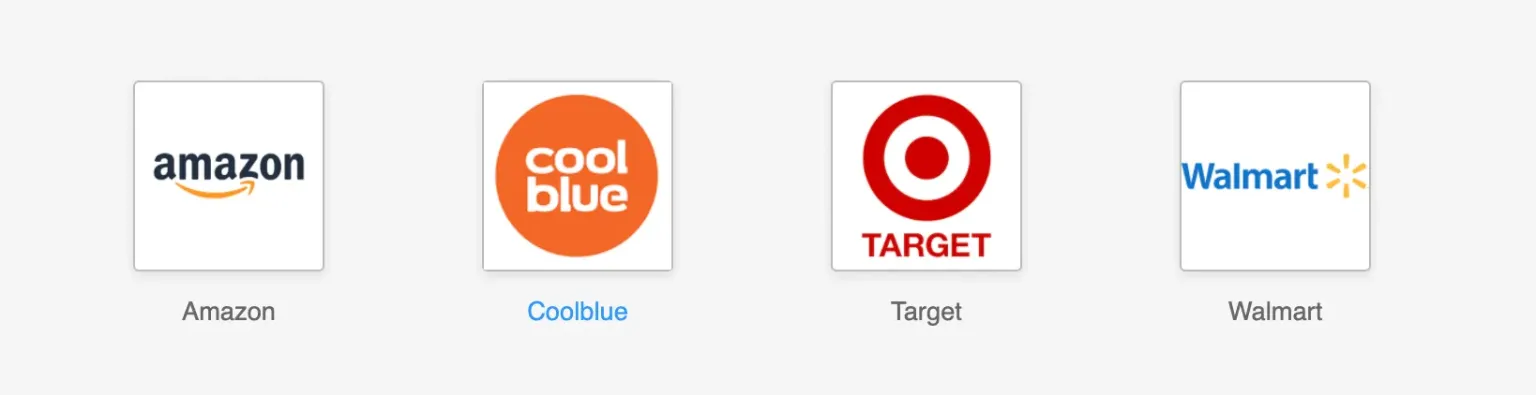
Within the e-procurement software, the buyer is presented with an overview of all approved suppliers that offer an OCI integration. The buyer simply clicks on the desired supplier to initiate the process.
#2. Automated login (PunchOut)
The buyer is automatically logged into the supplier's webshop or digital catalog—no manual login credentials are required. The buyer can then browse the catalog and add products to their shopping cart as usual.

#3. Transfer the shopping cart back
Once the buyer finishes filling their shopping cart, they do not proceed to a standard checkout or payment gateway. Instead, the webshop redirects the buyer back to their e-procurement system (completing the “RoundTrip”) by securely transferring the shopping cart data along with them.
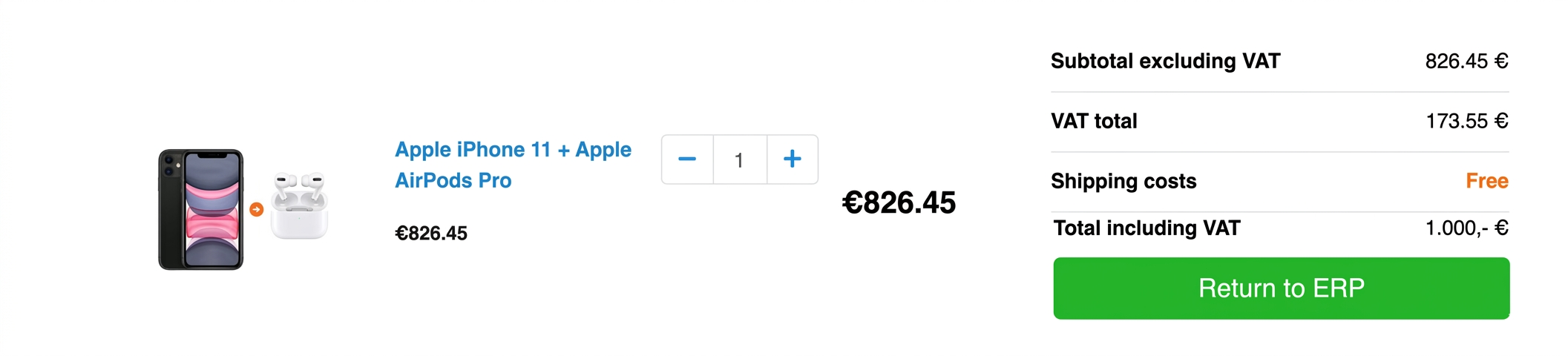
The product information is then fully imported and displayed directly within the e-procurement software.
#4. Complete the purchase request
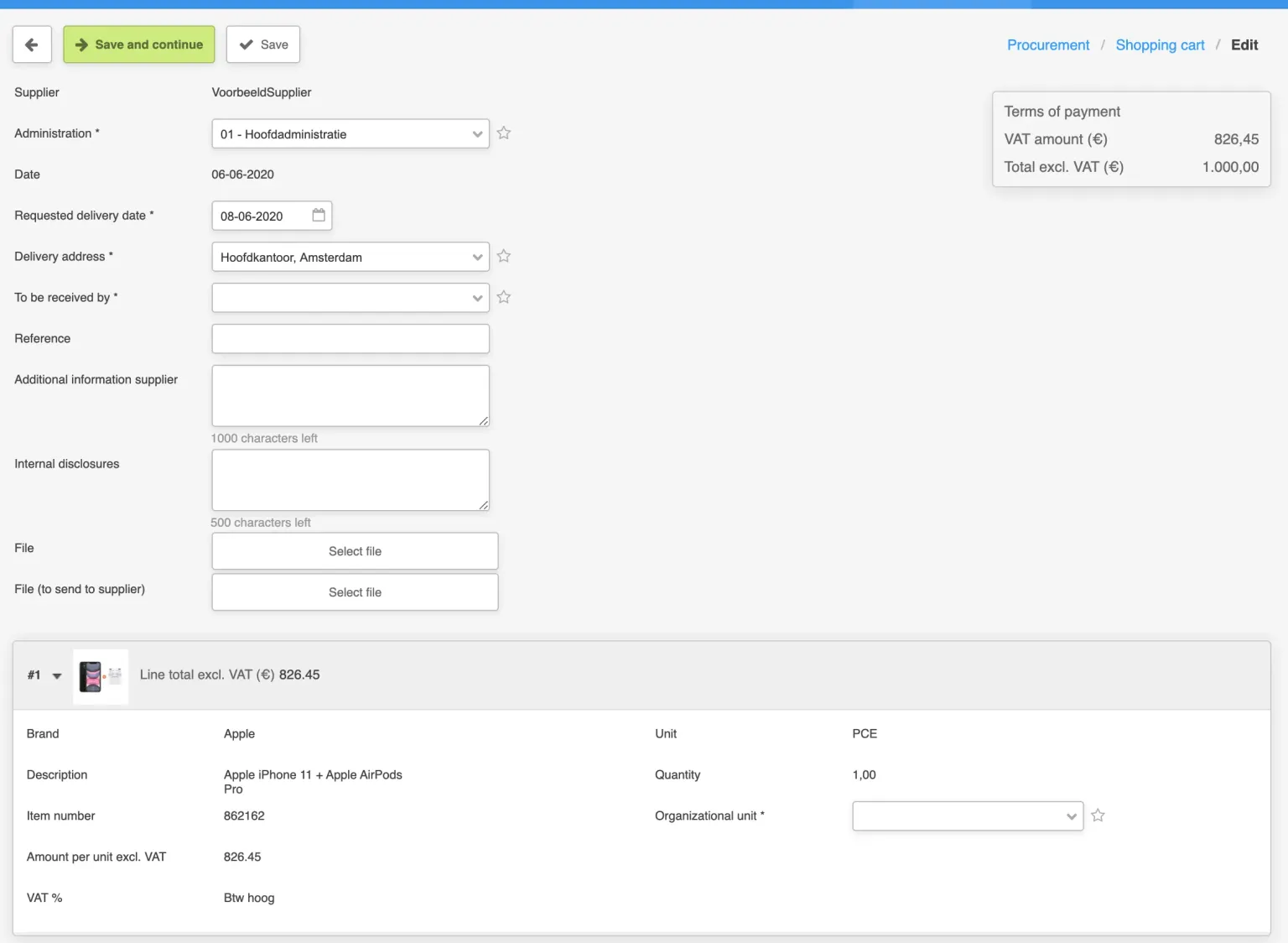
Inside the procurement system, the buyer can add additional (financial) details to the request. This includes selecting a general ledger account, specifying recipient details, and choosing the delivery address. Once all mandatory fields are completed, the order is submitted internally for approval. At this stage, a Purchase Order (PO) number is generated, allowing the buyer to track the request.
#5. Order approval workflow
Before an order is officially sent to the supplier, it must pass through an internal approval workflow within the procurement system. Based on the buyer's spending limits and roles, the software automatically routes the purchase order to the appropriate manager(s) for approval. As soon as the required approvals are granted, the procurement system automatically sends the official order to the supplier.
#6. Order reveived by the supplier
The supplier receives the order generated by the procurement software. This marks the official confirmation of the order, allowing the supplier to proceed with fulfillment and shipping. Depending on the setup of the procurement system, the order may be sent via email (as a PDF or Word document) or electronically as a (c)XML file via HTTP(S) or (S)FTP.
#7. Goods receipt & delivery registration
As soon as the buyer receives the order, it is marked as "received" in the procurement system. This makes it easy for the buyer to track which orders have arrived and which are still pending from different suppliers.
#8. Invoice matching
When the supplier sends the invoice, it can be automatically matched against the initial purchase order. Because the original purchase request was already approved in step 5, this 3-way matching process allows for significantly faster invoice approvals. If the supplier includes the correct PO number on the invoice, this matching process usually happens entirely automatically.
#How does an OCI integration work technically?
To initiate the OCI RoundTrip and log into (PunchOut to) the webshop, user data is provided by the e-procurement system. This data can be sent using either the POST or GET method. With the POST method, the user data is sent securely in the background. With the GET method, the user data is passed directly within the URL, making it visible and easily readable by the user.
#Example of a GET request
If we want to log a user into a webshop using the GET method with the address www.example.org, we can do so by directing the user to the following URL:
1https://example.org/oci?username=JohnDoe123&password=SuperSecret&HOOK_URL=https://www.site.voorbeeld?hash=abc123**
In the example above, the URL contains three specific parameters in addition to the webshop address:
- username: The username used to log into the webshop. In this example:
JohnDoe123 - password: The password associated with the user account. In this example:
SuperSecret - HOOK_URL: The exact endpoint where the shopping cart data must be returned. While this example uses a placeholder, in practice, the HOOK_URL contains specific parameters to distinguish between different users within the ERP system.
The webshop must verify the username and password parameters to determine if the user is authenticated. If the credentials are correct, the user should be logged into the online store instantly.
IMPORTANT: Parameters are almost always URL-encoded when they are sent. This is necessary because certain characters are not permitted in a standard URL. The webshop must always URL-decode the received parameters before processing them.
#Transferring the shopping cart
To return the shopping cart data back to the e-procurement system, an HTTP POST method is used. While there are various ways to implement this, a standard and reliable method is using an HTML form with hidden values (type="hidden").
SAP uses standardized names for the parameters of a PunchOut order, which are characterized by the prefix NEW_ITEM-. It is critical to ensure that the parameters sent by the webshop exactly match the values expected by the ERP system.
Modern procurement software allows for field mapping, making it easier to connect to different types of webshops. Below is an example of an HTML form used to transfer product data:
 1<form action="https://www.procurementsystem.example?hash=123ABC" method="post">
 2    <input type="hidden" name="NEW_ITEM-DESCRIPTION[0]" value="A123">
 3    <input type="hidden" name="NEW_ITEM-QUANTITY[0]" value="1">
 4    <input type="hidden" name="NEW_ITEM-UNIT[0]" value="Pieces">
 5    <input type="hidden" name="NEW_ITEM-PRICE[0]" value="10.00">
 6    <input type="hidden" name="NEW_ITEM-CURRENCY[0]" value="EUR">
 7    <input type="hidden" name="NEW_ITEM-VAT[0]" value="21">
 8    <input type="hidden" name="NEW_ITEM-VENDORMAT[0]" value="12345">
 9    <input type="submit" value="Transfer shopping cart" id="submit1" name="submit1">
10</form>
Warning! Most procurement systems expect the user and the shopping cart data to be returned simultaneously to the HOOK_URL. Therefore, it is not possible to return the shopping cart first, wait for a response from the ERP, and then forward the user afterward.
For a detailed explanation and a complete overview of all available fields, please consult SAP's official OCI documentation.
Need help setting up a seamless OCI or cXML PunchOut integration for your webshop? Feel free to contact Abeta.